
Practitioner signature image management - Release Notes
Practitioners can now upload, preview, and remove their personal signature image directly in Settings, ready to be embedded in signed clinical notes.
What changed
- New Signature Image section added under User Settings in the Settings sidebar.
- Practitioners can upload a PNG or JPEG signature image using a secure two-step upload flow — file is stored privately and linked to the practitioner's account.
- A live preview of the uploaded signature image is shown immediately after upload.
- Practitioners can remove their signature image at any time using the Remove button, with a confirmation step to prevent accidental deletion.
- Exactly one active signature image is maintained per practitioner — uploading a new image automatically retires the previous one.
Customer impact
- Clinicians can personalise their signed notes with their own signature image, improving document authenticity and professional presentation.
- The upload flow is secure and straightforward — no external tools or IT involvement required.
- Signature images are immediately available for use on newly signed clinical notes once uploaded.
Impacted Healthcare Roles
- Physicians, nurse practitioners, and other credentialled clinicians who sign clinical notes and require a personal signature on patient documentation.
- Clinical administrators responsible for onboarding practitioners and verifying their documentation setup.
- Compliance and health information management staff who review signed note integrity and provenance.
Steps to Reproduce
Scenario Used:
- returns the active row with a presigned GET URL
- returns uploadUrl, s3Key, and signatureImageId for a valid PNG
- delegates to atomicReplaceSignatureImage with correct args
- delegates to retireSignatureImageById with correct args
-
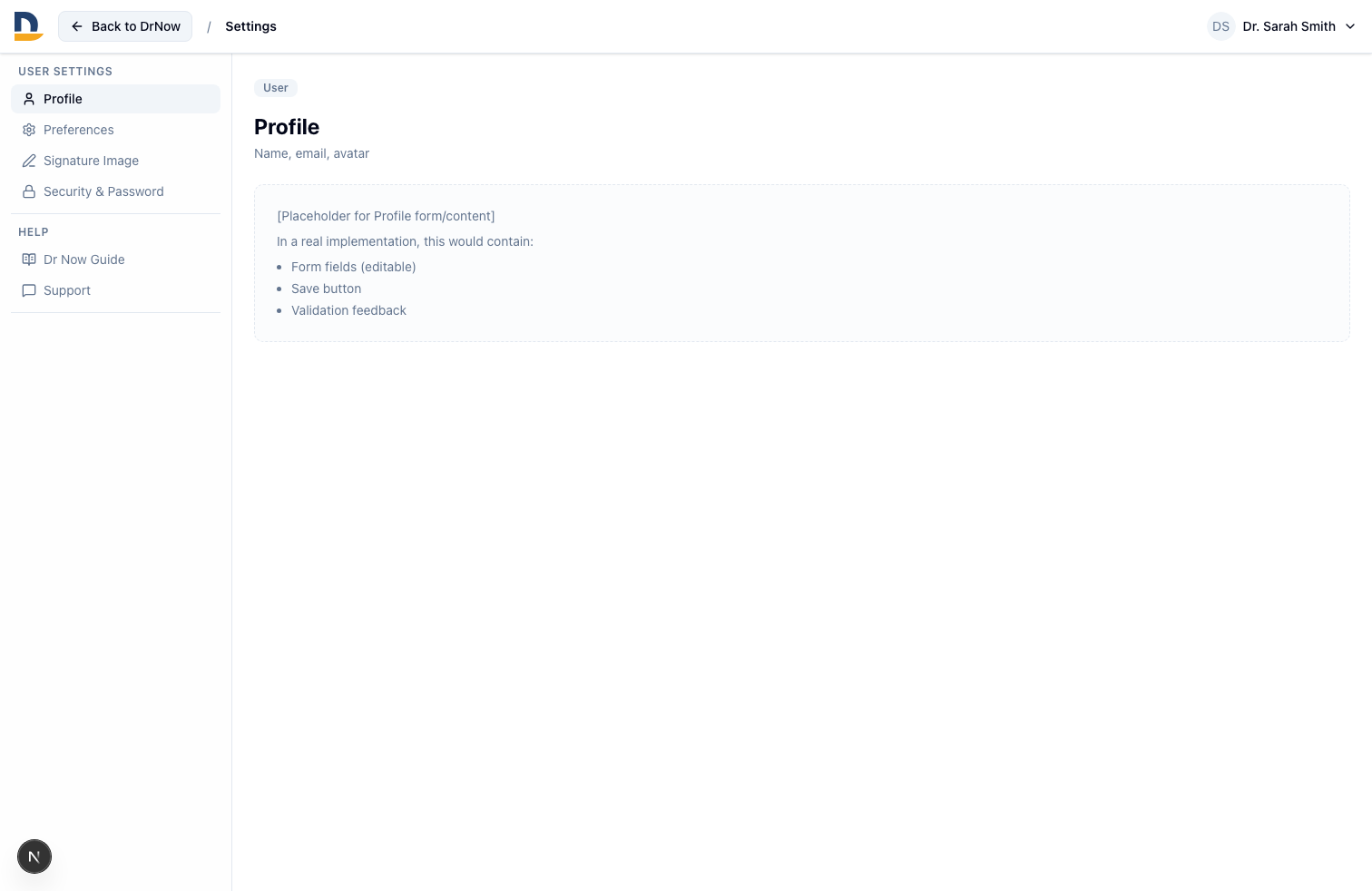
Step 1: Open Settings and navigate to the Signature Image section
Navigate to User Settings and select Signature Image from the sidebar to view the signature management area. -
Step 2: View the signature image upload area
Review the upload control showing the file picker and Upload button for adding a PNG or JPEG signature image. -
Step 3: View the active signature image preview and remove option
After a signature image is uploaded, the section shows a live preview alongside the Remove button for managing or replacing the image.
Comments
0 comments
Please sign in to leave a comment.