
Purpose
This article will provide information and guidance on the set up and use of note templates within DocNow.
Audience
DocNow administrators and end users.
Overview
Note Templates in DocNow can be highly customized and subsequently used by clinicians to use for note documentation. Administrators can edit templates to be used by providers in their practice.
Templates are customized in the admin portal, and then utilized by providers when writing a note.
Providers are also able to create their own templates in their user portal Smart Drive, though many practice choose to have standard documentation by only allowing system templates to be used.
Table of Contents
Admin Set Up
Managing Templates
Navigation
To add, edit, and view practice wide templates an administrator will login to the Admin Portal and then navigate to the Templates tab.
Using the dropdown named Select Template Type admin can choose between system defined templates or user defined templates.
System Defined: Templates that are managed by practice admin and can be assigned to specific facilities for provider use.
User Defined: Templates that have been created by individual providers. Admin have the ability to edit and delete provider's created templates.
Adding New Templates
1. Add New Template
- To create a new template choose Add New Template.
2. Template Informational Fields
Fill out informational fields for organization and function.
Title (required)
- Note titles are seen when managing templates, writing notes, and become the title in integrated facilities.
- Since titles transfer to PCC & Matrix it is helpful to include your company name, specialty, and type of note
- It is also good to include the facility source for internal organization which will be important when associating the template to specific facilities
- Example: DocNow Wound Initial Evaluation [PCC]
Specialty
- If your practice is using Specialties then any Specialties you have added through company settings will be available here.
- Templates that are assigned a Specialty will only be visible to providers who have the same Specialty applied to their account.
-
Templates that are not assigned a Specialty will be available to all providers who are associated to the same Facility as the Template.
- Providers who are assigned a Specialty can still see and use notes that are not assigned a Specialty.
- When a Template is assigned a Specialty when a follow up or progress note is written using that Template it will only pull data forward from a previous note that shares the same Specialty unless a Shared Phrase is used.
- When a Template is not assigned a Specialty it will only pull information from other notes that do not have a Specialty assigned unless a Shared Phrase is used.
Template Type (Required)
- Initial template types are made to be used for initial evaluation visits or similar visits.
-
Follow Up template types are made to be used for follow up or progress note visit types.
- Follow Up templates have the ability to pull data forward from previous Follow Up and Initial template types.
-
Not Seen template types are used for documenting missed or not seen visits.
- The primary functional difference of Not Seen templates is that they will not interfere with data flow between other note types.
- For example, if a Not Seen visit type is used in between two Follow Up visit types, the Follow Up visit note will skip the Not Seen not when looking for data to pull forward.
- Internal Note template types prevent notes from being uploaded to an integrated EHR. They are still notes but will stay within DocNow.
- Info Note template types provide a not which does not contain charges. This is intended for internal communications and miscellaneous notes for the patient which will not be uploaded to an integrated facility (e.g. PCC/Matrix)
Template Type |
Impacts Carry Forward Information |
Uploaded to Integrated Facility (PCC/Matrix, if applicable) |
Includes Charges |
|---|---|---|---|
Initial/Follow up |
YES |
YES |
YES |
Not Seen |
NO |
YES |
YES |
Internal Note |
YES |
NO |
YES |
Info Note (New) |
NO |
NO |
NO - Hidden from Provider |
Select Facility (Required)
The facility source influences where the note can pull data from
- DN Facility source can pull data from within DN (patient name, provider name, facility name, patient DOB, patient medications if entered manually within DocNow, etc.)
- PCC (point click care) Facility source can pull data from within DN and from an integrated PCC facility
- Matrix Facility source can pull data from within DN and from an integrated Matrix Facility
Select Templates
This is optional and will create a preset note title.
Select CPTs
- The selected CPT codes are associated to the template so that when a user has used this template to write a note they will have any codes assigned here to choose from.
- The codes will appear in the Template Linked E&M Code sub tab of the provider's Charge Capture area.
- The codes will appear in the Template Linked E&M Code sub tab of the provider's Charge Capture area.
- Providers will still be able to select other codes if desired
- Practices will often attach specific evaluation and management codes to templates i.e. initial visit codes on initial evaluations and established patient codes on follow up notes
Select Facility
Choosing a facility here associates the template to that facility which means when a provider is also associated to that facility that they will be able to choose that template when writing a note.
- You must choose at least one facility to associate a template to in order to save it
- Template association with facilities can also be managed in the "Associations" tab
3. Add Template Content
Add at least one character in the editing area of a template to be able to save a new template. In depth information for building and editing templates follows below.
Editing and Building Templates
The following section will provide in depth information on the building blocks available for creating templates.
DocNow templates start as blank text documents which allows for a high degree of customizability which is enacted through the building blocks.
To edit any template select the edit icon.
Note: The lock icon is unlocked by default which will allow providers to view and make their own copies of the system templates. When locked they will be able to view the system templates but won't be able to edit and save their own copy of them.
Feature 1: Text
The most basic way to edit a note template is to include plain text.
- Text can be inserted anywhere within a template.
- When a provider loads a template for note writing, any plain text in the template will be inserted into their note.
- Providers always have the option to delete, edit, and add additional text when writing a note.
- Example use cases for text:
- Note Title
- Contextual information for documentation
- Sub headings
- Default text for sections such as physical exam
- Disclaimers or meta-notation
Feature 2: Free Text Indicators ***
To create a free text indicator for providers within a template simply type three asterisks *** anywhere in the note template. Then when a provider uses this template there will be a green highlighted area that they must resolve before signing their note.
- Providers can free text anywhere in a note at any time, but adding *** will create a highlighted section which is helpful when a certain field or area needs special attention for documentation.
- *** fields are made to be typed into but they can also be deleted.
- Providers can navigate through the *** fields when documenting by using tab, ctrl+j, and shift+down arrow.
- When providers type into the *** field the text they type will be highlighted green. Highlights will be removed automatically from notes when the note is signed.
Simply type *** into a template to create free text indicators:
When a provider loads a note with free text indicators they will be highlighted green, and the provider will not be able to sign their note until they are resolved by typing or deletion:
Feature 3: Template Headings
Template headings are used to organize notes and are required in order for information to be pulled forward from note to note.
If the information below the heading does not need to be pulled forward to subsequent notes then it is fine to style your own heading using BOLD ALL CAPS.
If the information in the section needs to be pulled forward then choose a Template Heading by expanding the right window of the template editor and use the arrows to navigate to Template Headings.
- Click Select to insert the heading into your note template.
- You may also type the template in using BOLD ALL CAPS.
- Once you have a template heading in your template you can use any or a mix of the features described here to populate the section content.
Feature 4: System Dot Phrases
System phrases refer to built in phrases for DocNow that resolve different types of data into a note.
- View available system phrases by expanding the right window within the template editor and then using the arrows to navigate to System Defined Phrases.
- Insert these phrases by clicking Select or by typing the given phrases in the template
- Phrases ending in @dn pull in data from DocNow.
- Phrases ending in @pcc pull in data from Point Click Care
- Phrases ending in @matrix pull in data from Matrix
Example: @pcc phrases under Template Headings in a template which when loaded into a note will pull in the referenced data from Point Click Care.
Feature 5: Shared System Phrases
Shared Section Phrases allow administrators to create documentation options that can be used in any note templates. When one provider makes an updated to a shared section phrase, any other provider who is using a template with the same phrase will have the most up to date information loaded into their note. This phrase can be used for many different sections of a note in DocNow such as HPI, ROS, Physical Exam, Plan, etc. Once configured by the admin, providers can fill in the data, edit it in follow-ups, and have the data automatically carried forward from the last signed note.
Note: This feature allows a different way to pull note information forward in progress notes. The original method for pulling information forward was using .prevnote dot phrases under system recognized headings.
Creating Shared Section Phrases
1. Navigate to
Admin Portal > Phrases > Shared Section Phrases
2. Add a New Shared Section Phrase
Admins can add a new shared section phrase from the Shared Section Phrases tab.
Each shared section phrase must end with section@dn (e.g., assessment_section@dn).
- The phrase can include:
Dropdowns
Phrases
Free text fields
Nested dot phrases
Adding Shared Section Phrases To Templates
After an administrator has created a Shared Section Phrase they can add it to any template they would like.
Because the Shared Section Phrase does not rely on system headings and .prevnote functionality, it can be used essentially anywhere in a note. The most common use case would be to create Shared Section Phrases that correspond to information that providers need to pull forward and update note to note.
Feature 6: Prevnote Phrases - Pulling Note Data Forward
Prevnote phrases are a special type of system phrase that allow the content under a specific Template Heading to be pulled forward to a subsequent note.
- Prevnote phrases are a type of system phrase and are found in the same list as system phrases.
- View available system phrases by expanding the right window within the template editor and then using the arrows to navigate to System Defined Phrases.
- View available system phrases by expanding the right window within the template editor and then using the arrows to navigate to System Defined Phrases.
- Prevnote phrases always correspond with a specific Template Heading.
- You are not able to create your own prevnote phrases - only those available within the system will function correctly
-
Prevnote phrases work by having the system look for all of the content between it's corresponding system heading and the next system heading.
- The second/next system heading is identified through bold text.
- For this reason, any text that is bolded either through a note template or by a provider writing a note will interfere with note content pulling forward if it is within a section that is being pulled forward.
-
Because prevnote phrases pull the last content from the corresponding header it is not recommended to include any other features such as free text, other phrases, text, or drop downs under the same heading you are using a prevnote phrase for.
- If you do use additional features at the same time as a prevnote phrase, information will begin to duplicate note to note.
Example:
In the first screenshot this will work well with no duplication:
In the screenshot other features are used in conjunction with prevnote phrases which will lead to duplication as note content is pulled forward:
Feature 7: Dropdown Menus
Drop down menus can be custom created in note templates and when loaded into a note allow providers to select pre-set options to populate their note.
To create a Dropdown Menu select the left most drop down icon in the template editor
-
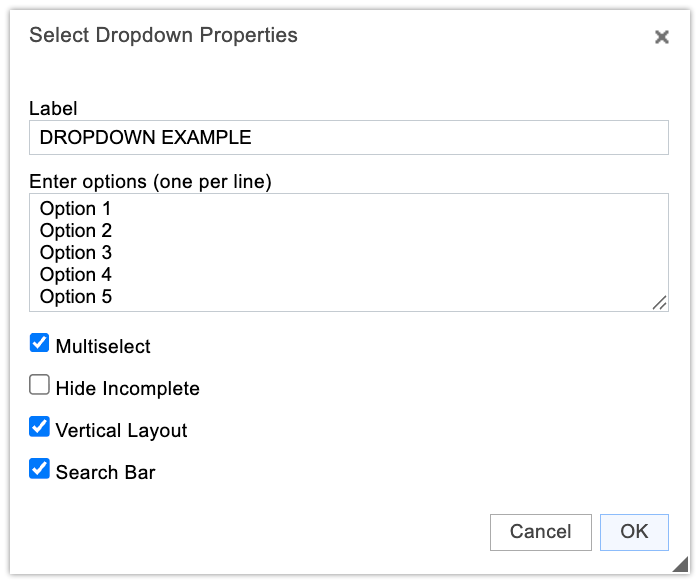
Fill out the label, options (Each line = separate dropdown option), and then make further configurations if desired.
Multiselect: When enabled users can select multiple drop down options
-
Hide Incomplete: When enabled if a drop down selection is not made the line that has the drop down will disappear from the note.
When disabled users must make a drop down selection or else they cannot sign their note
Vertical Layout: When enabled the dropdown selections made will be inserted into a note on separate lines instead of being inserted on the same line separated by commas
Search Bar: Adds a search bar to the top of the drop down option. Helpful for drop down menus with many options.
Editing Dropdown:
Corresponding Interface
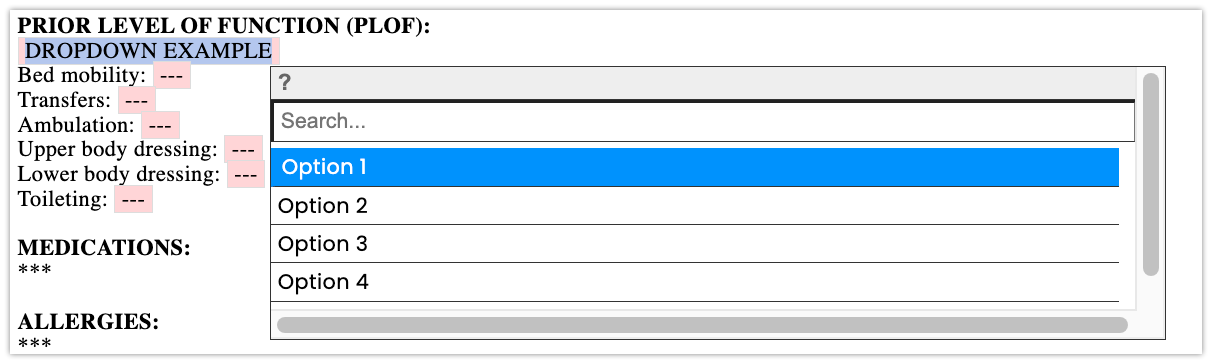
Note: User defined phrases may be used as a drop down option which when selected by a provider will resolve in the note. This can be used to create option trees with more advanced logic.
Considerations
- Text formatting is only viewable in the PDF versions of notes that providers create. Text formatting will not display when viewing notes in integrated EHRs such as Point Click Care or Matrix Care.
- Any text that is bolded either through a note template or by a provider writing a note will interfere with note content pulling forward if it is within a section that is being pulled forward using the .prevnote functionality.
Comments
0 comments
Article is closed for comments.